Showing posts with label Install. Show all posts

Saturday, August 20, 2016

How to install AVG Free Antivirus in Windows 10

In this guide we will know how to replace default Windows Guard antivirus into AVG Antivirus Free edition in Windows 10 OS.

1. Please visit AVG official site to download AVG Free Antivirus installer for Windows 10.


2. Please save this installer to your hard drive


3. After installer download is finished, please run AVG Free Antivirus installer as administrator


4. In a new opened User Account Control window please allow this app to make changes to your device – simply press “Yes” button


5. Installer will start its installation preparing.


6. During installing AVG will be downloading installation components


7. Now, AVG Free Antivirus installer shows “Welcome” screen. Press “Continue” to start installation process.


8. To get a Free version of AVG Antivirus, please select “Basic protection” mode and press “Install now” button.


9. AVG installer will start installing process.


10. During installation there will be downloading of necessary components


11. If you need install AVG fast, skip free AVG account registration


12. Now, AVG is installed into your PC with windows 10 OS. AVG need some time to adjust settings, it could be 5-10 minutes, then AVG downloads updates automatically for own work. After this time you can check AVG Free antivirus state – this window with such message must appear. To view this windows please click AVG shortcut from taskbar.


13. Now, please press ”Start” button and then find “Windows - Control Panel” section, run “Control Panel”


14. In a Windows 10 Control Panel please open “System and Security” section


15. Then open “Security and Maintenance” section


16. Please open “Security” section and “AVG is turned on” state will be shown. It means that free AVG Antivirus works fine in your Windows 10 OS.


Saturday, November 16, 2013

How To Install Avira Free Antivirus


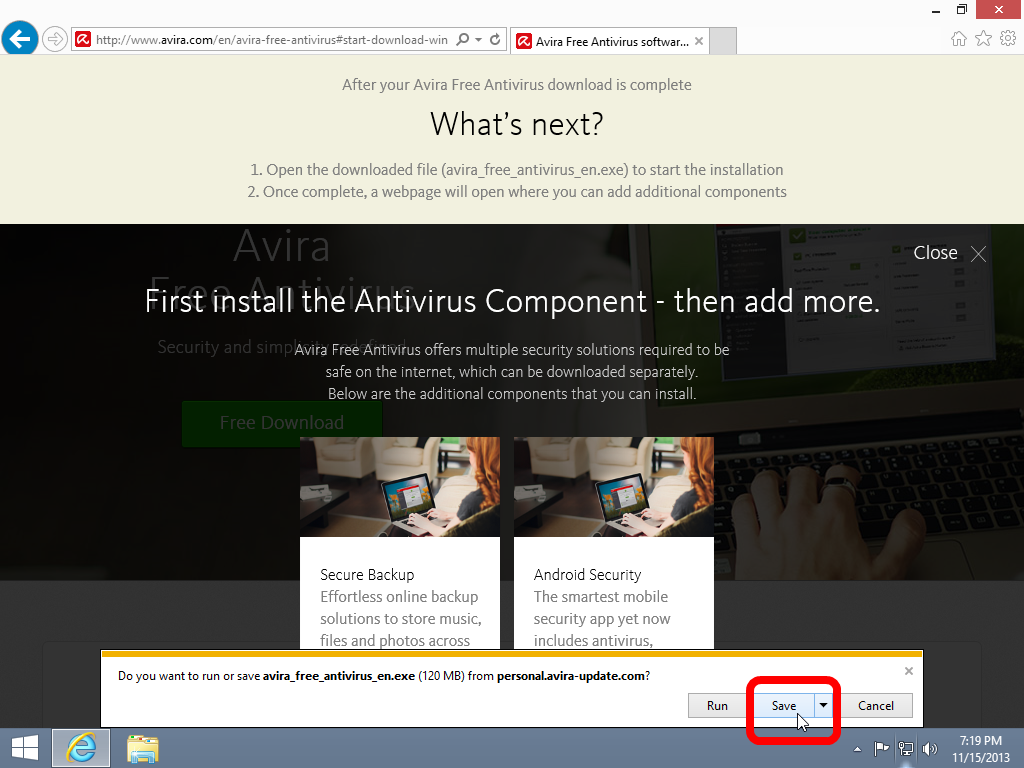
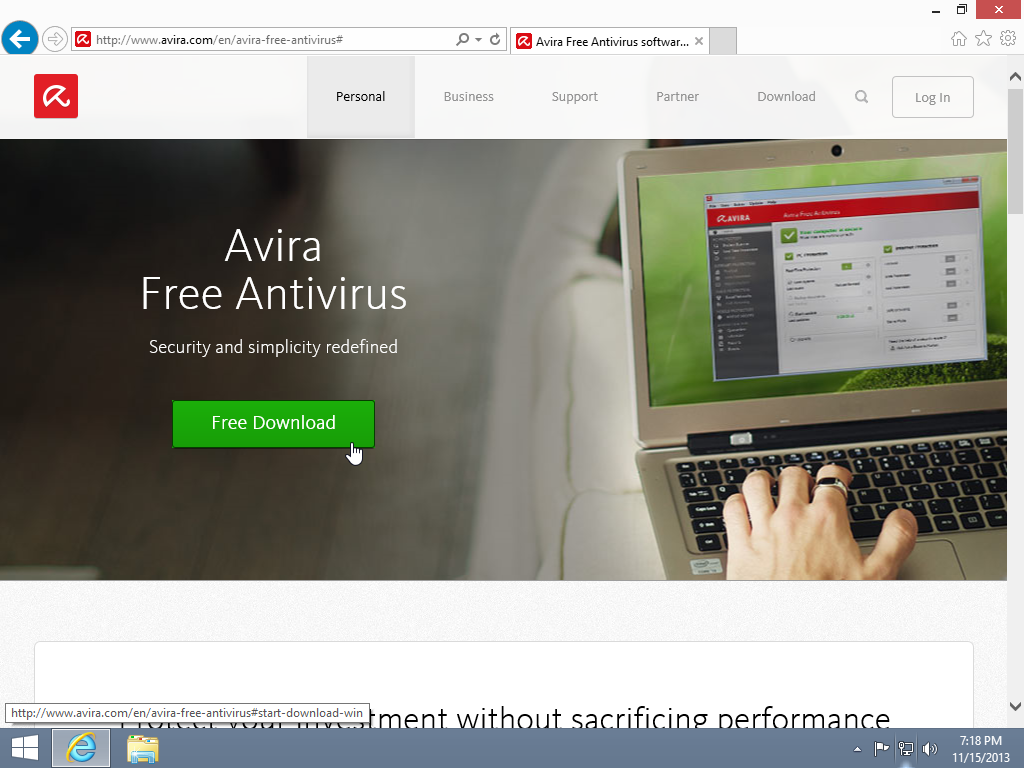
In this guide we will show how to install Avira Free Antivirus in Windows 8.1 OS. Please visit an official website for free download


Avira Free Antivirus website will start your download as shown.


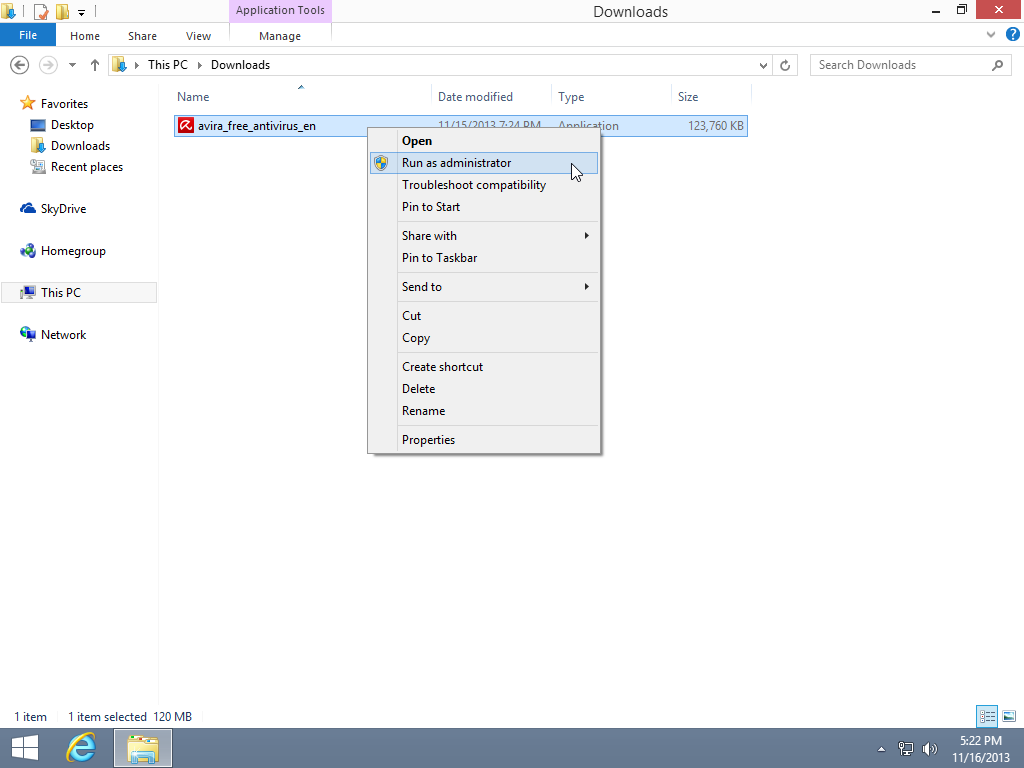
After download, please Right click and select “Run as administrator” to start installation.


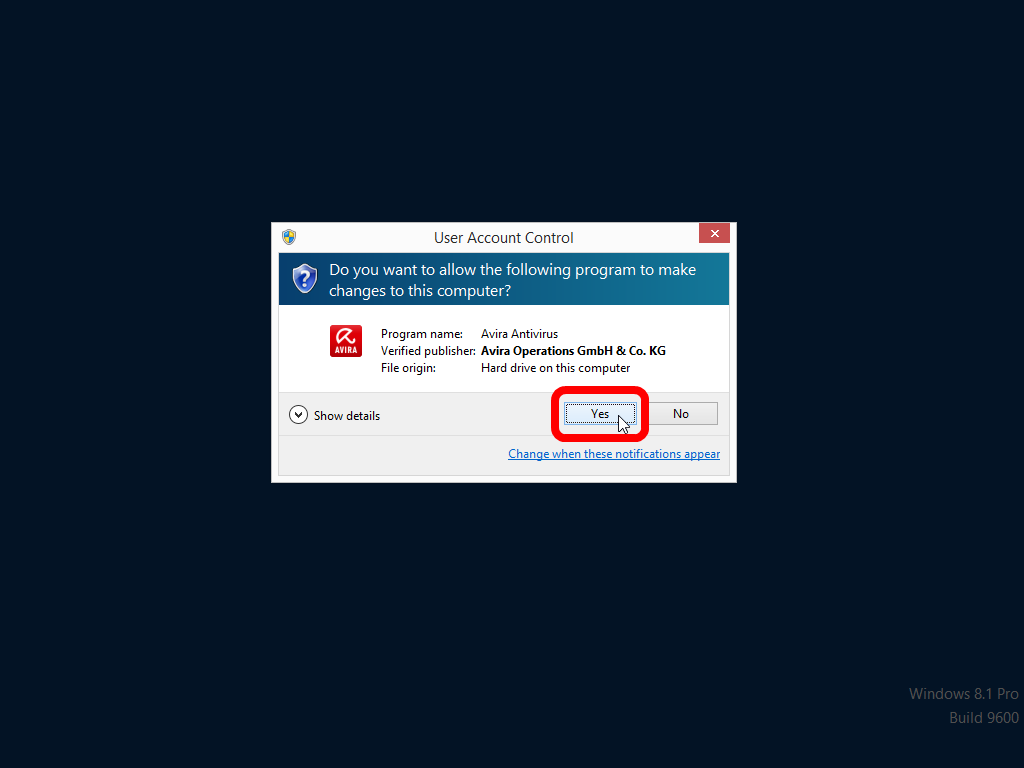
Windows 8.1 User Account Control will confirm a verified publisher by checking its digital signature, press “Yes” button to continue.


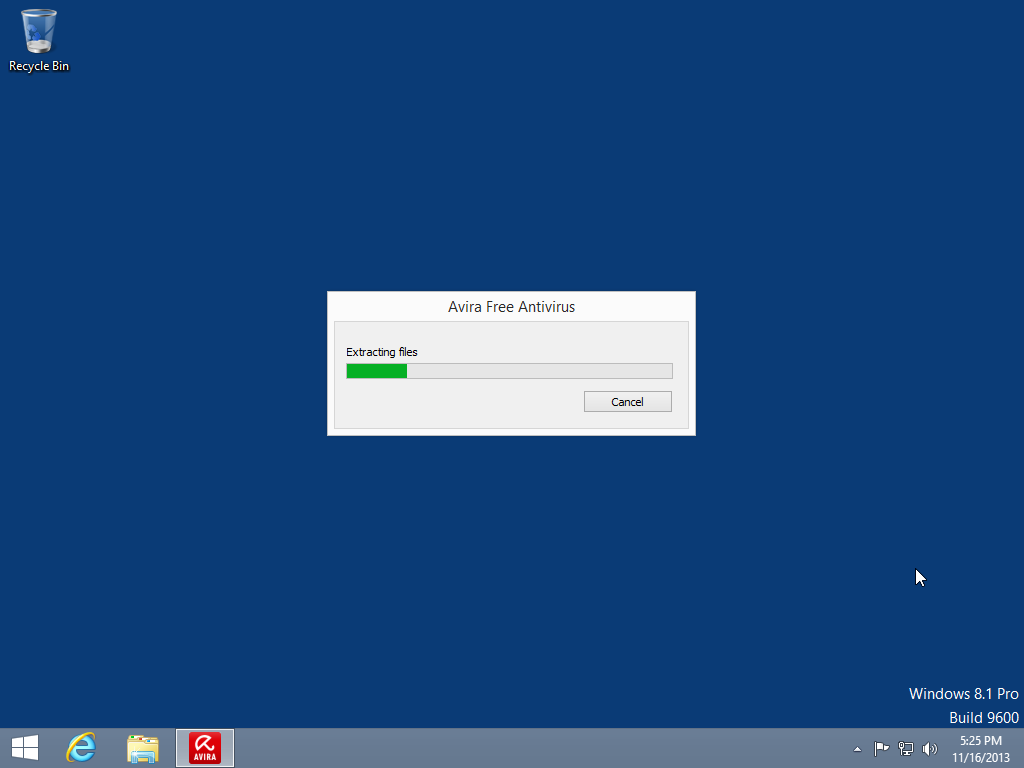
Firstly, setup file will extract necessary files to be installed in your Windows 8.1 OS.


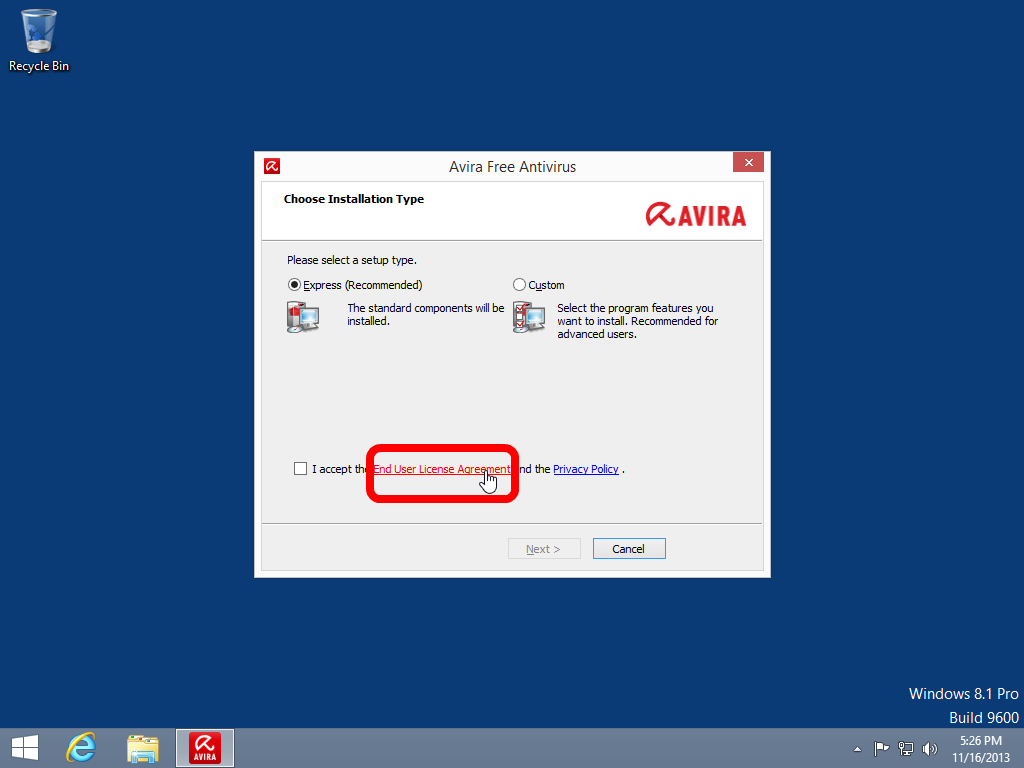
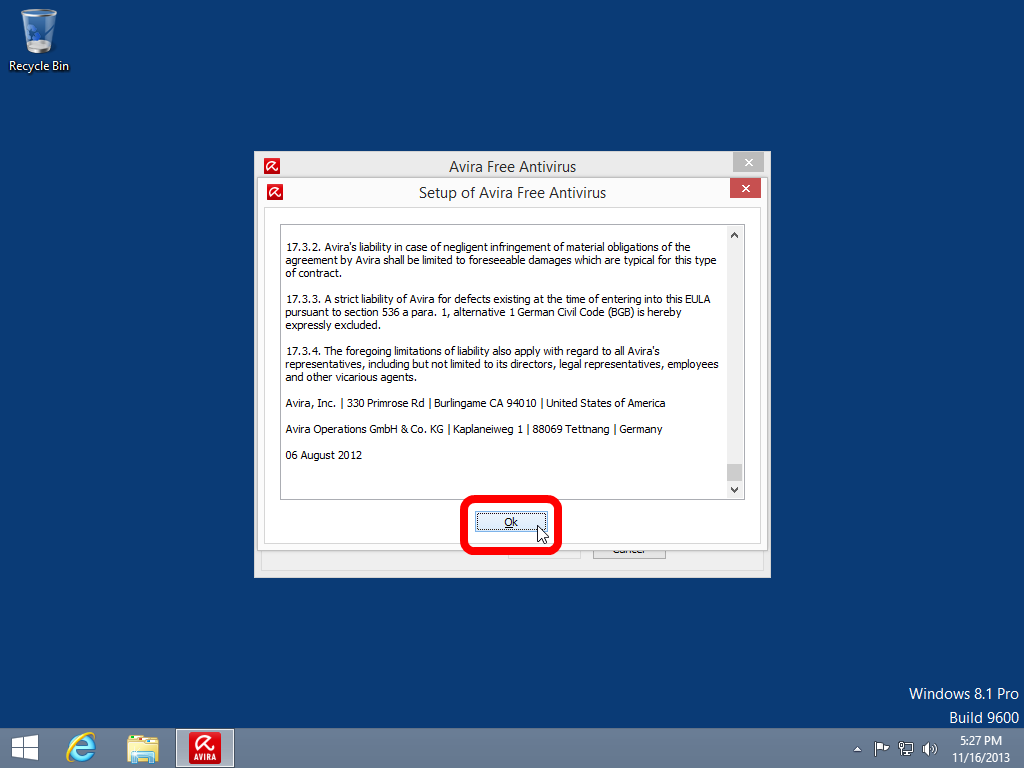
Next step, please open End User License Agreement to read it.


After EULA reading finish, press “OK” button to return to the previous setup window.


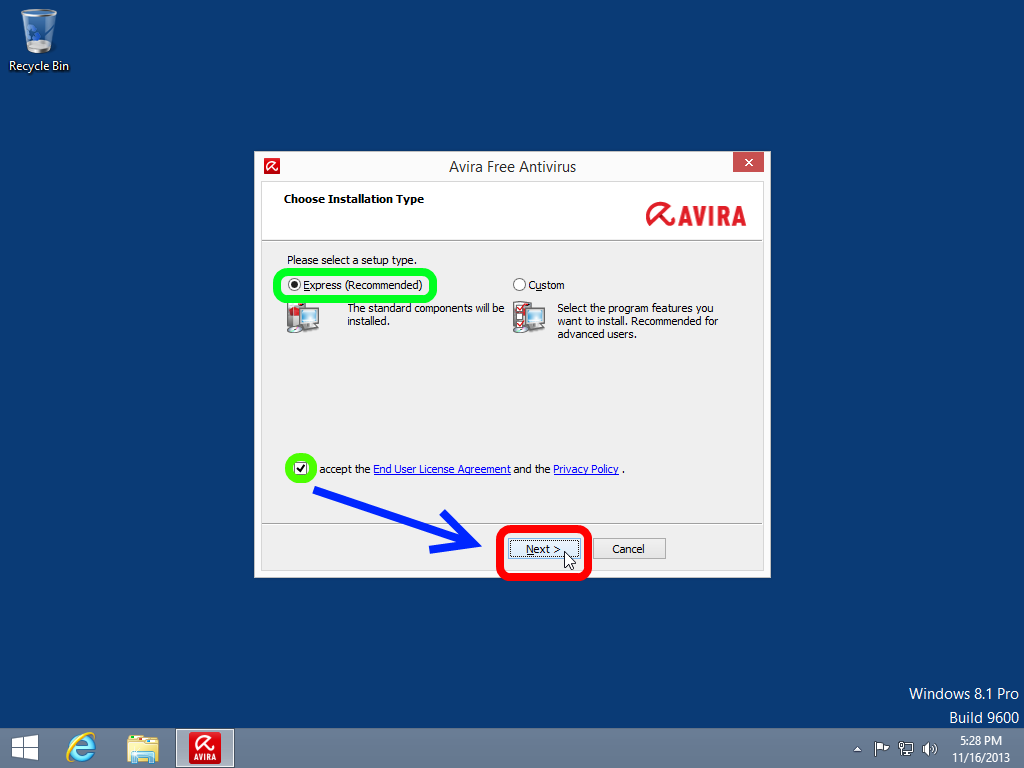
Now, we can select “Express (Recommended)” installation type, check “I accept the End User License Agreement and the Privacy Policy”, and press “Next” button.


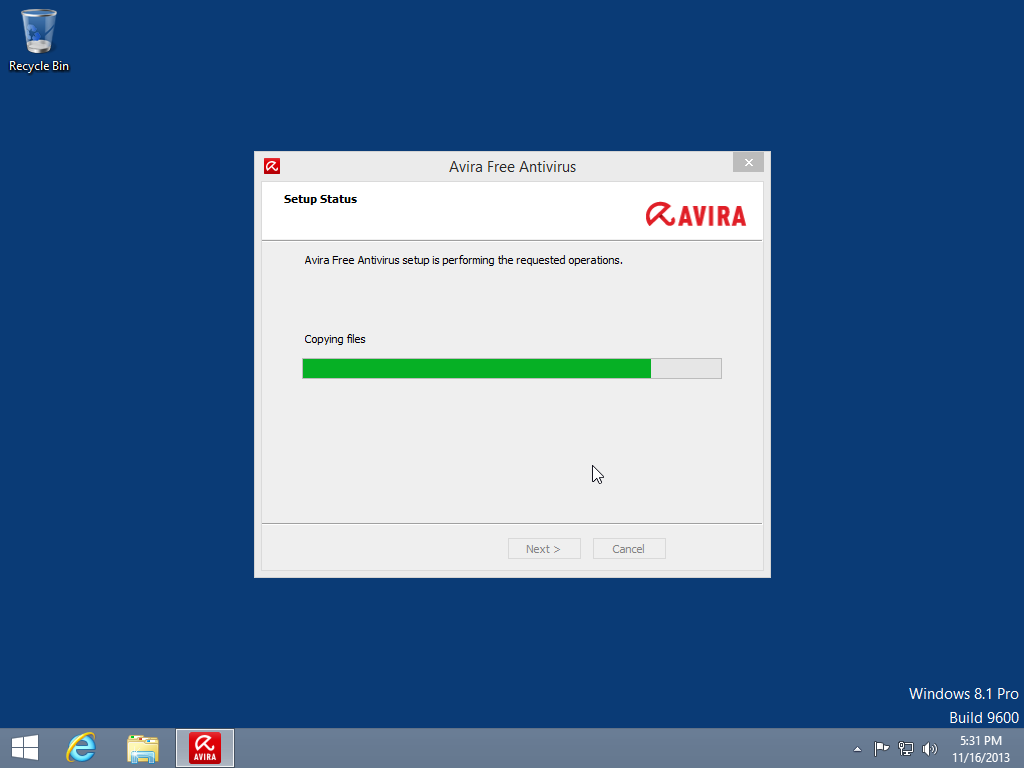
Avira Free Antivirus setup will start files copying.


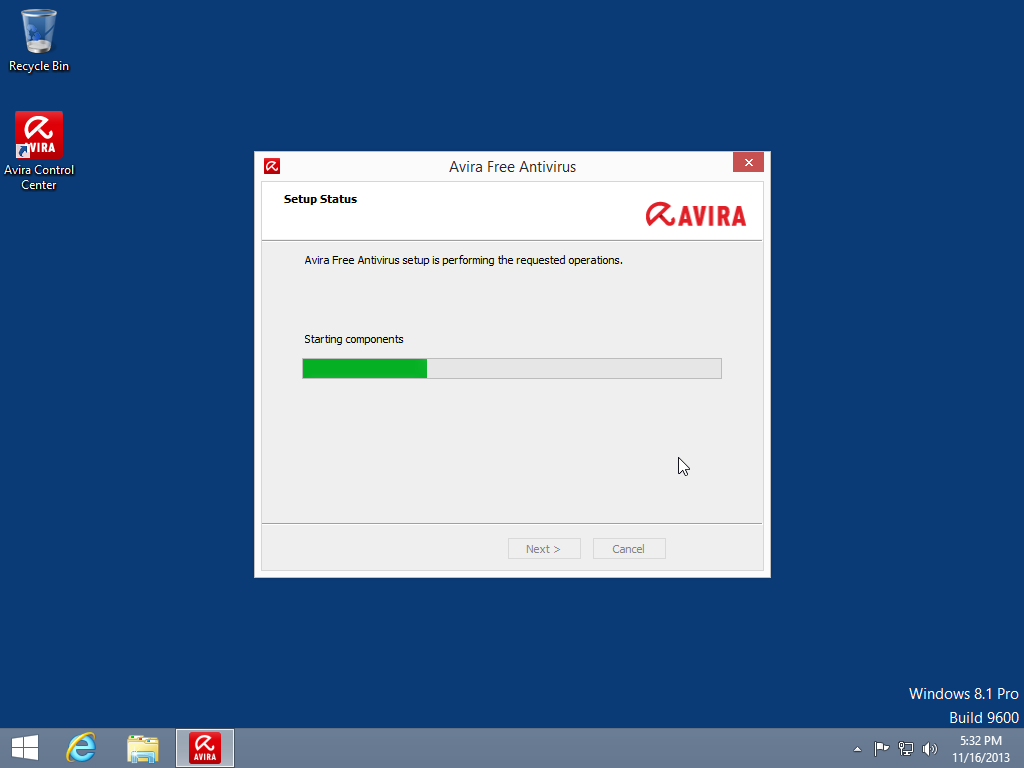
Then, the setup will start program files components.


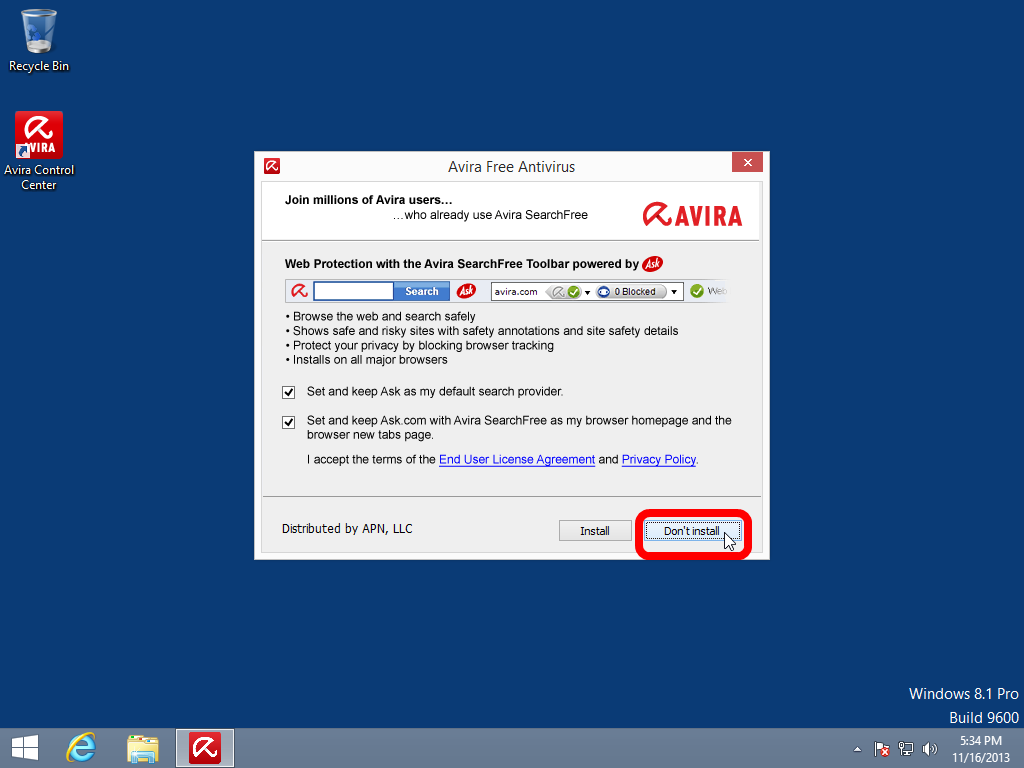
Now, we can see, that the installer suggest to us to install Avira SearchFree Toolbar, we selected “Don’t install” mode.


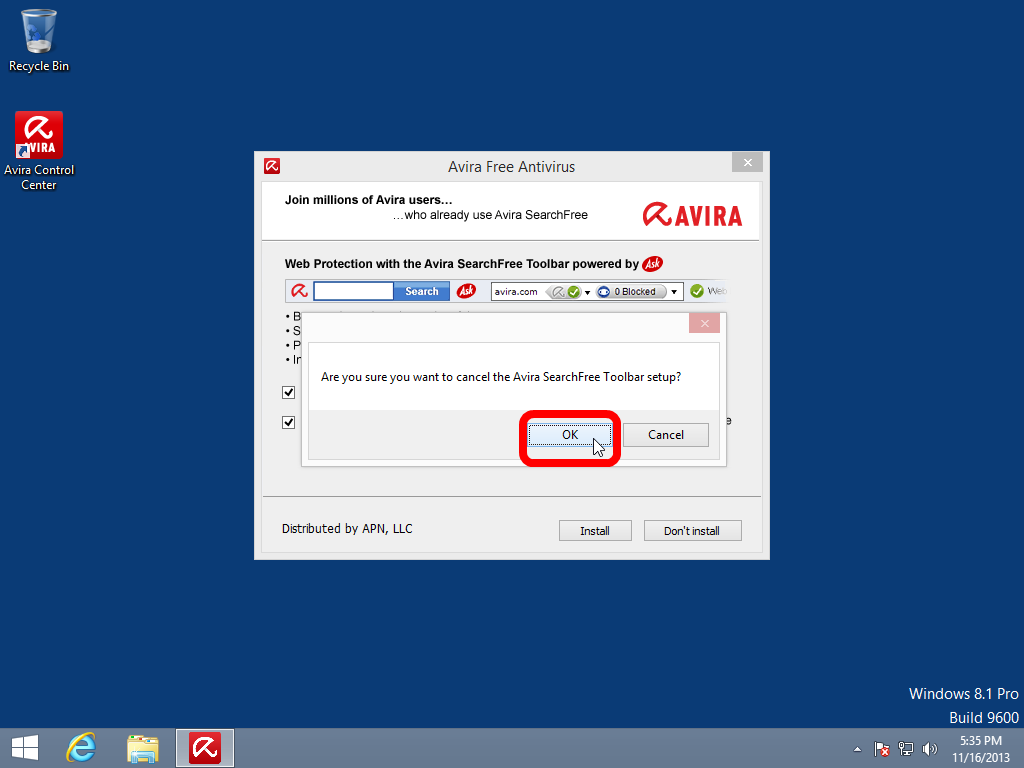
Nevertheless, the installer ask us to confirm our cancellation, we will press “OK” button.


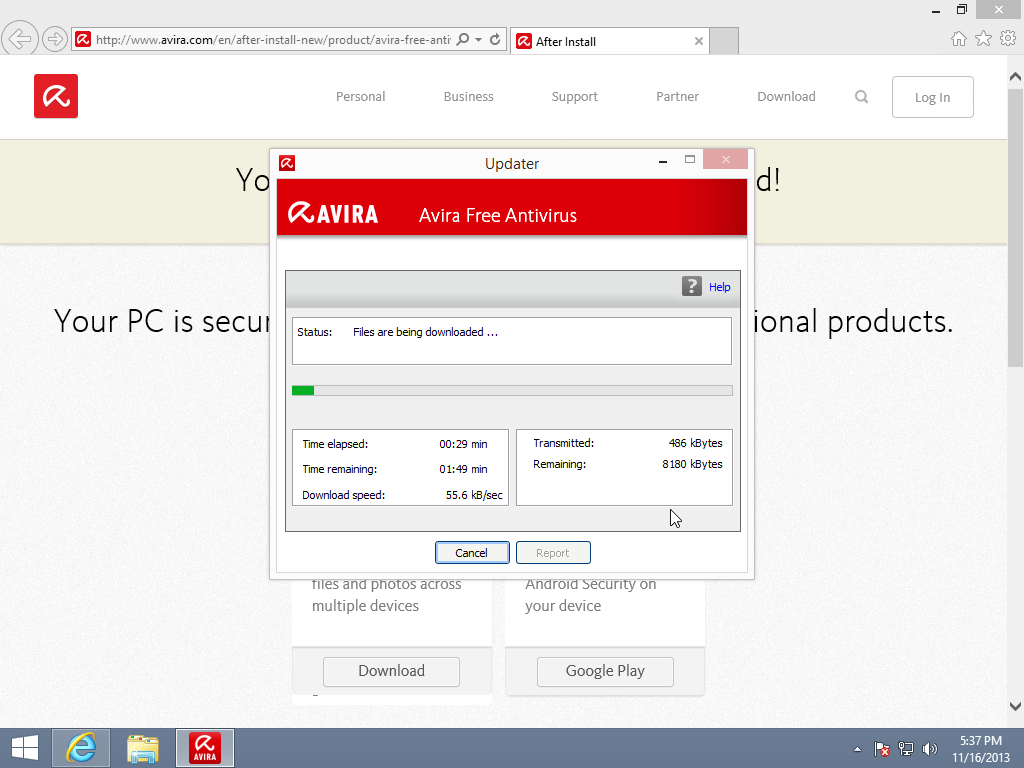
After install, Avira Free Antivirus website will be opened in your browser to congratulate us about successful installation, and at the same time, “Updater” window will be shown with downloading of the new antivirus bases for Avira Free Antivirus.


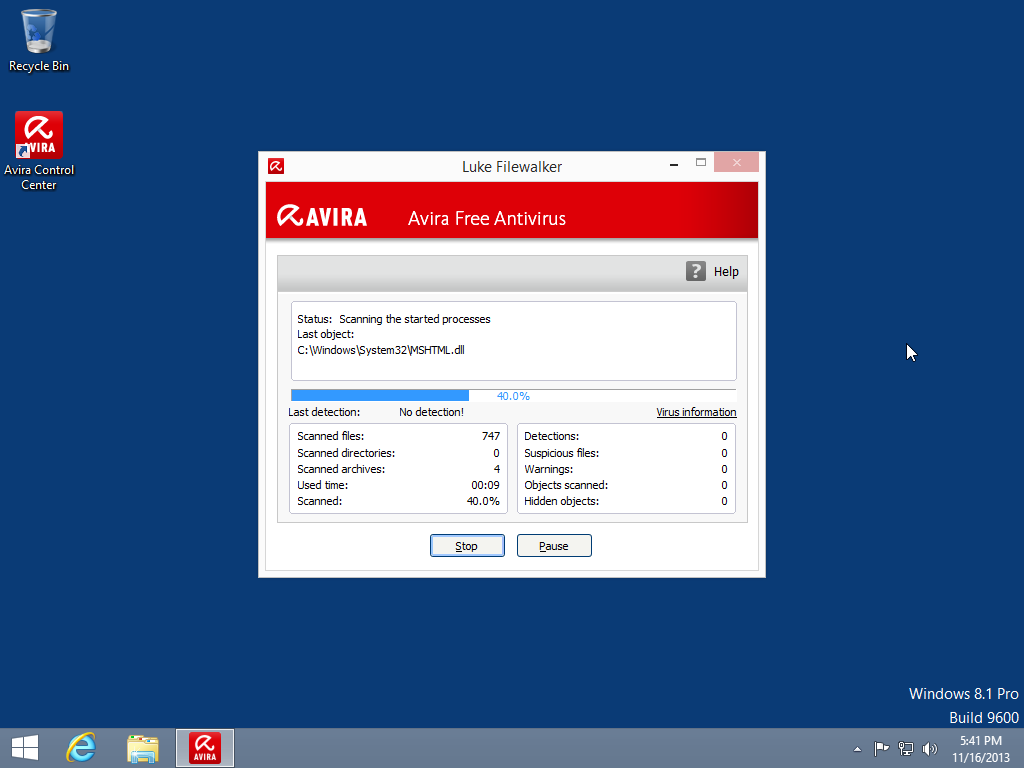
When the latest antivirus bases will be downloaded, Avira Free Antivirus will start Quick Scan process for your PC.


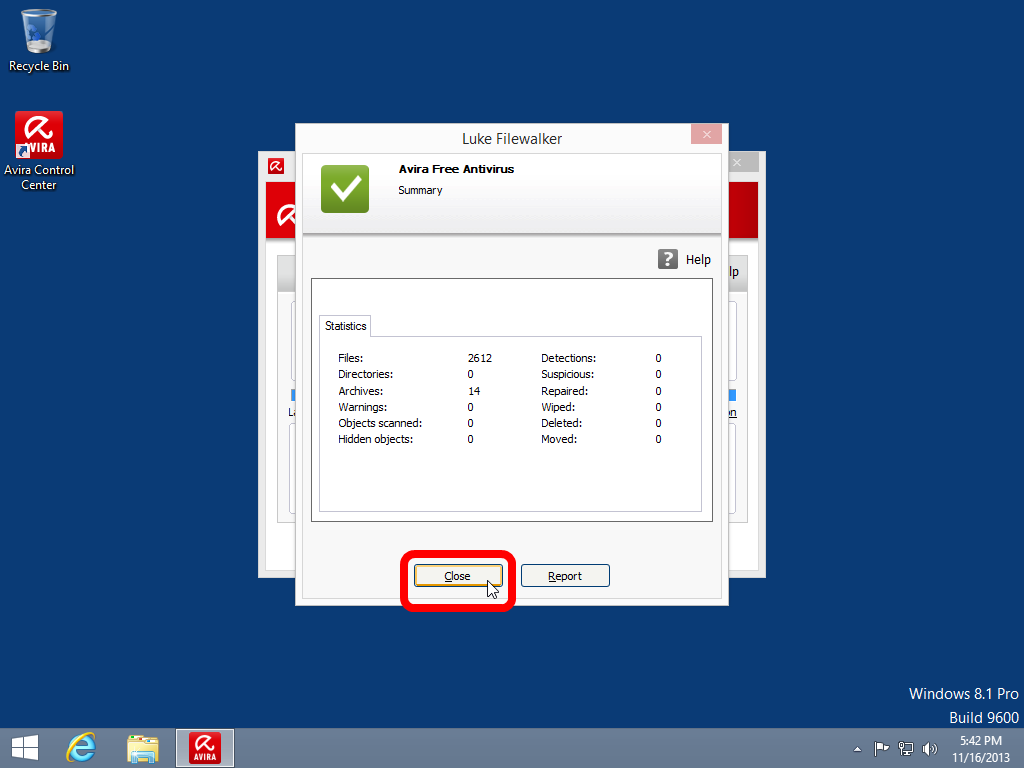
Then, a summary window with quick scan results will be shown, we have pressed “Close” button because everything were OK.


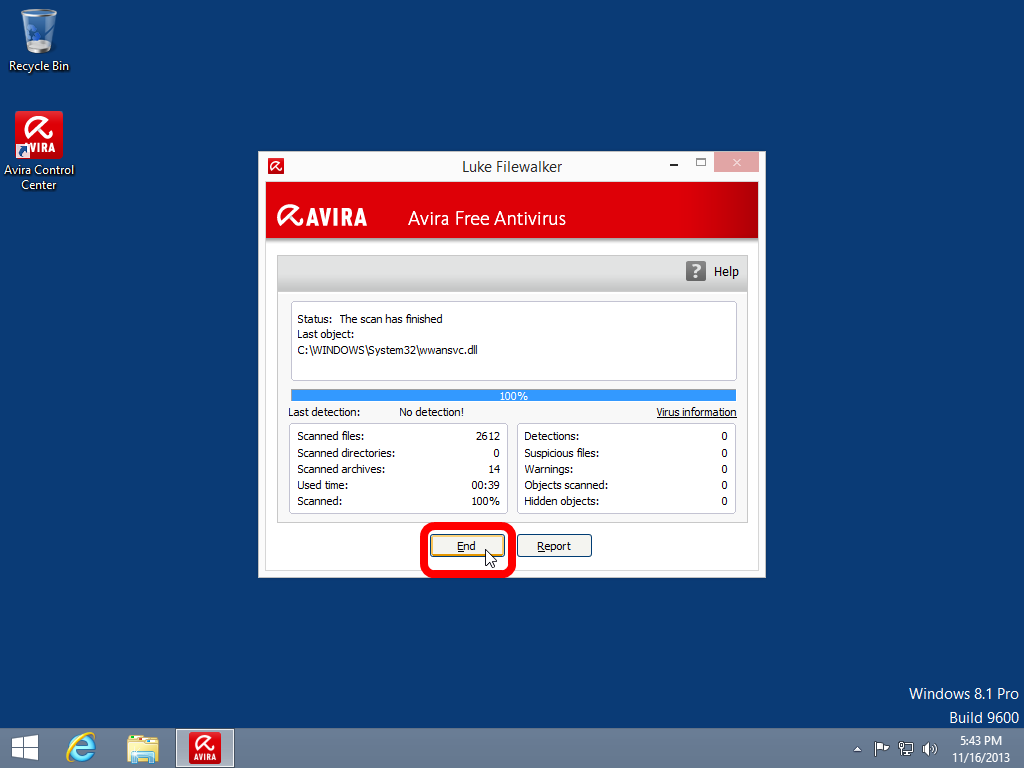
And finally, please press “End” button to close “Luke Filewalker” scanning tool.


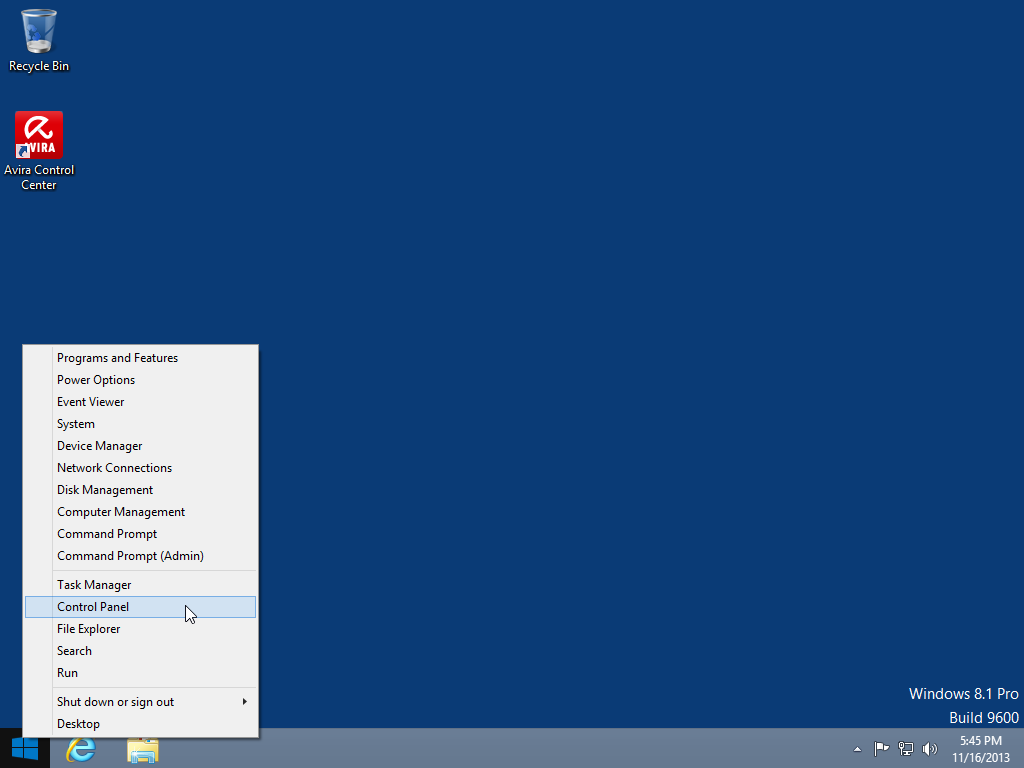
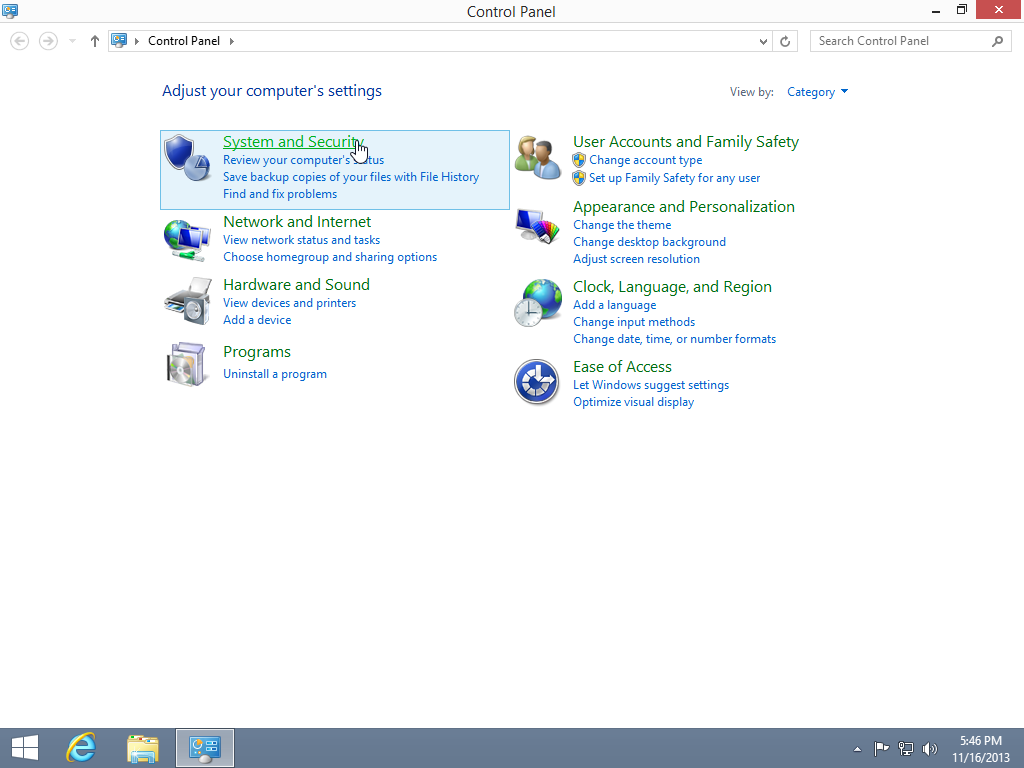
Now, we can check, if there is any antivirus working in your Windows 8.1 OS by default. Please Right click “Start” button on your Desktop and select “Control Panel”


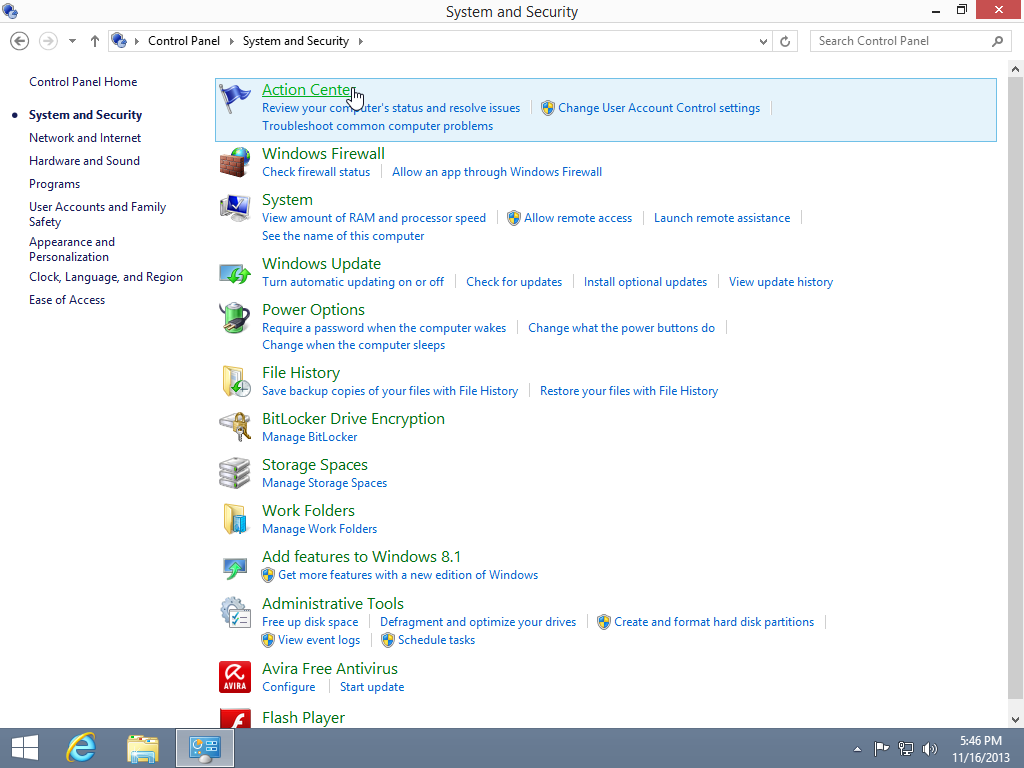
Then, please select “System and Security” link.


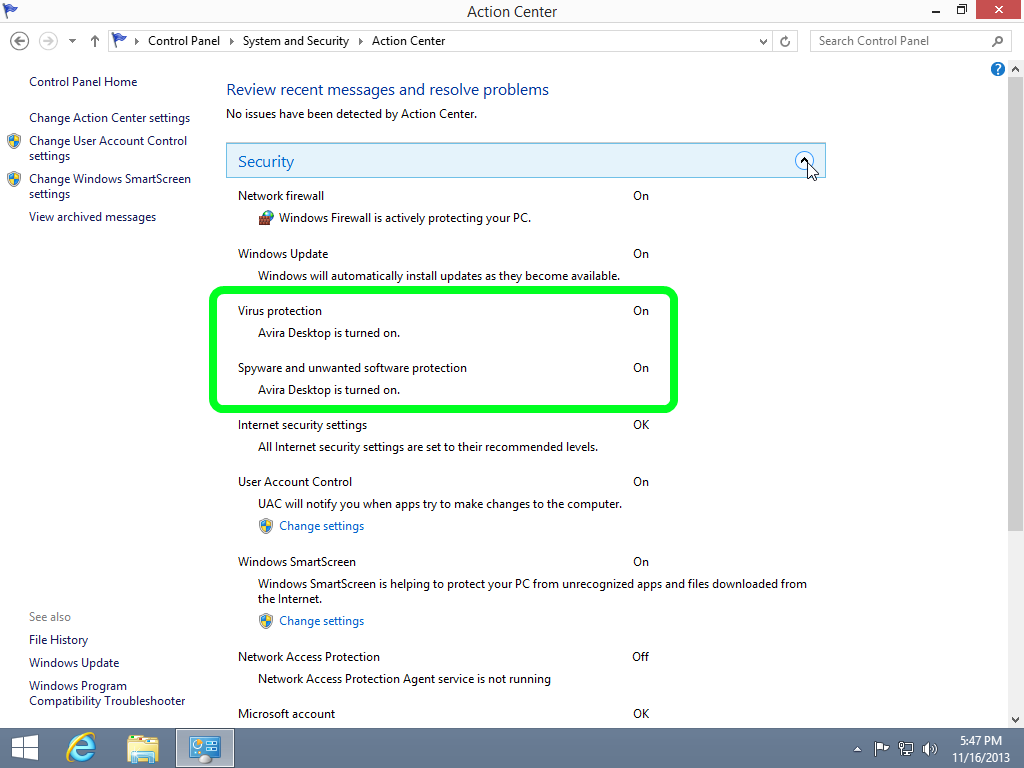
Now, we need to open “Action Center”


Congratulations! Avira Free Antivirus marked as Avira Desktop is turned on as a “Virus protection” and “Spyware and unwanted software protection”


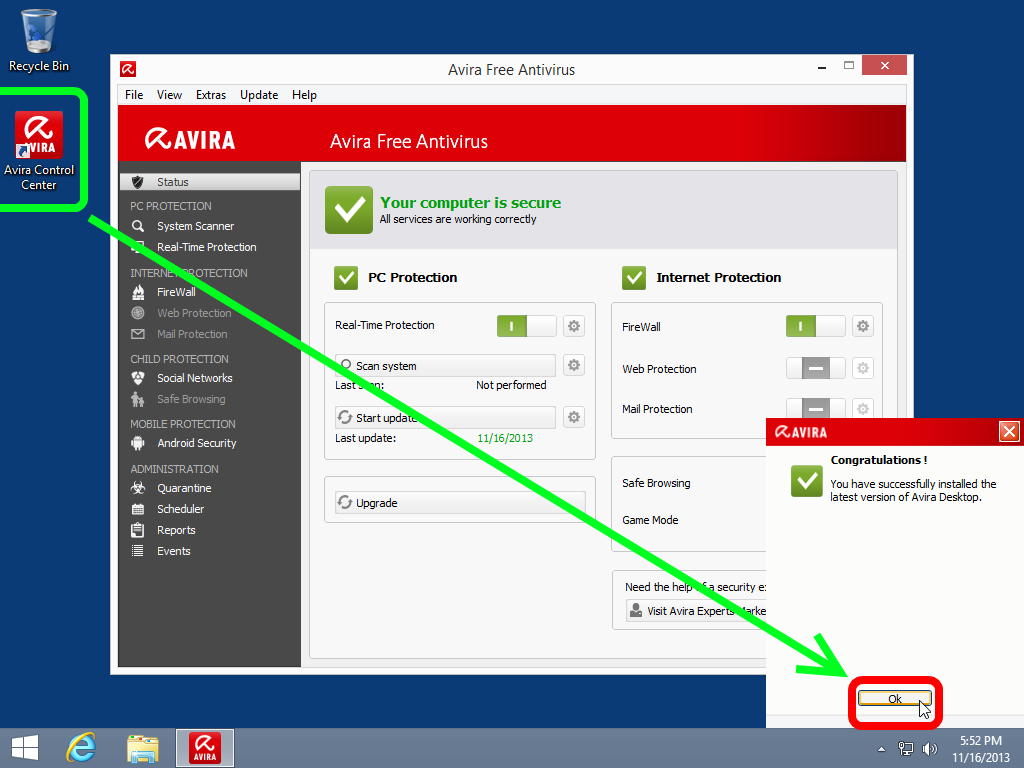
Now, please return to the Desktop to run “Avira Control Center”. After the first run Avira Free Antivirus will show their “Congratulations!” window, we could “Close” it.


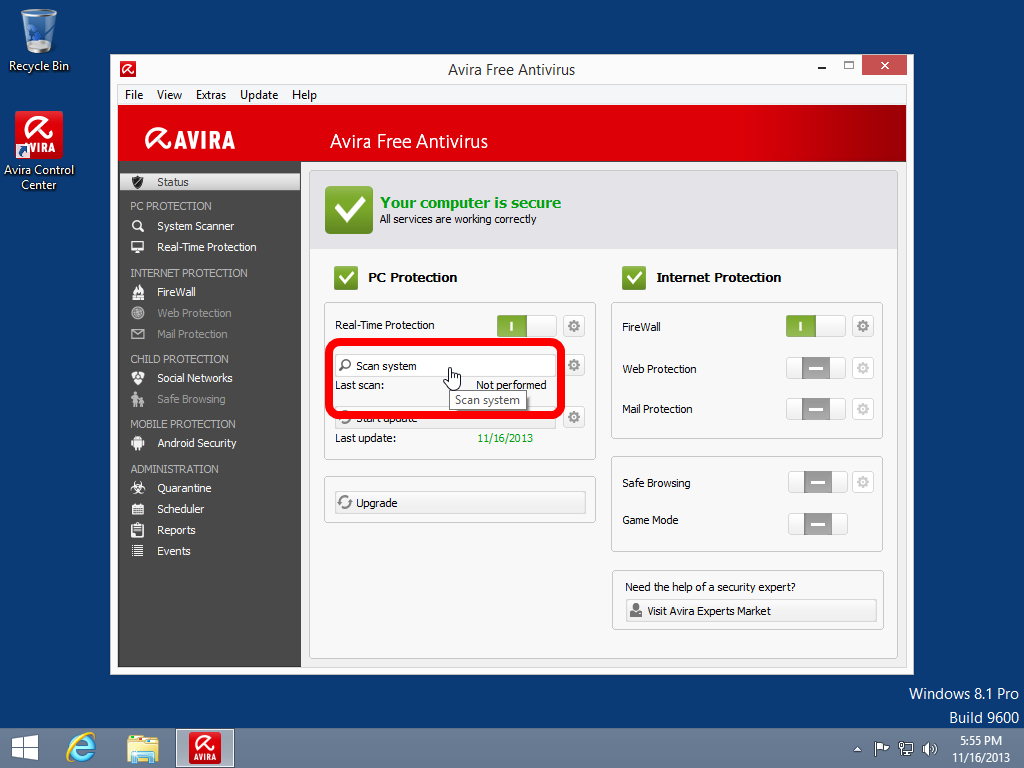
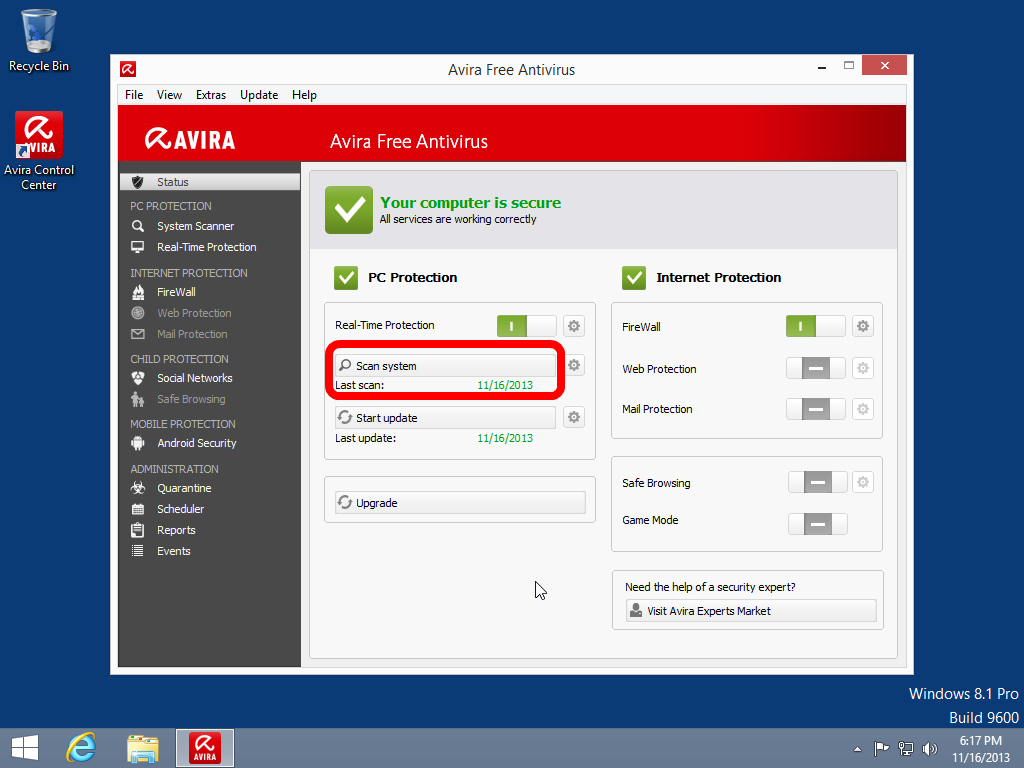
To execute “Scan system” operation please press the button as shown.


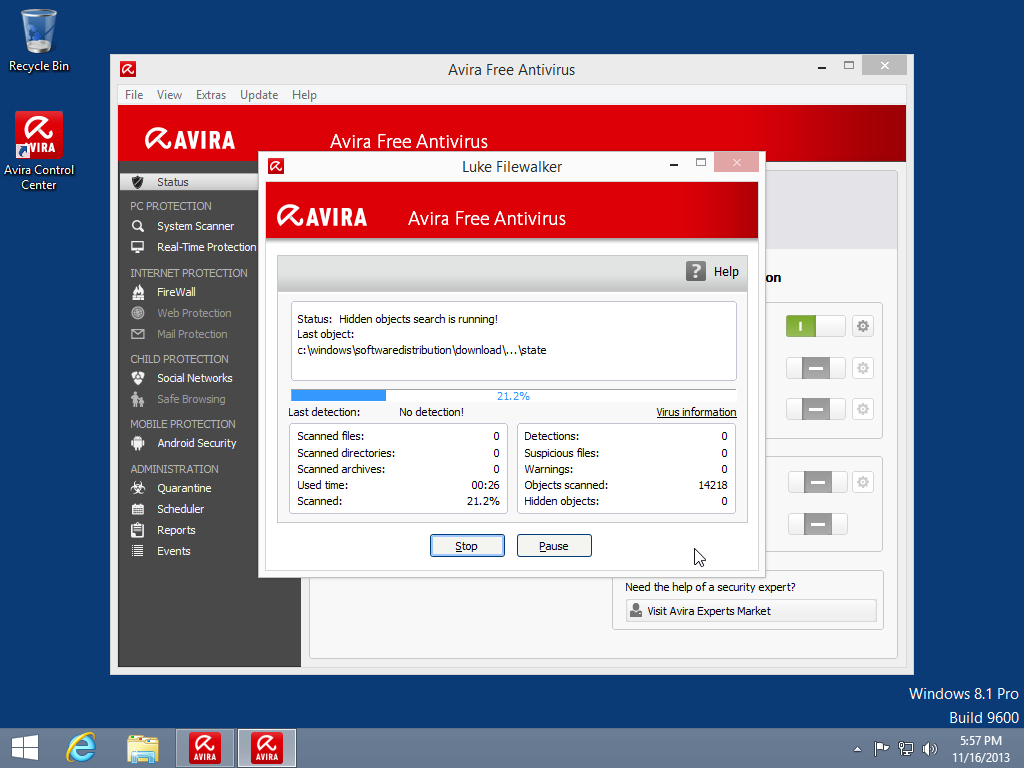
Firstly, hidden objects will be scanned by Avira Free Antivirus.


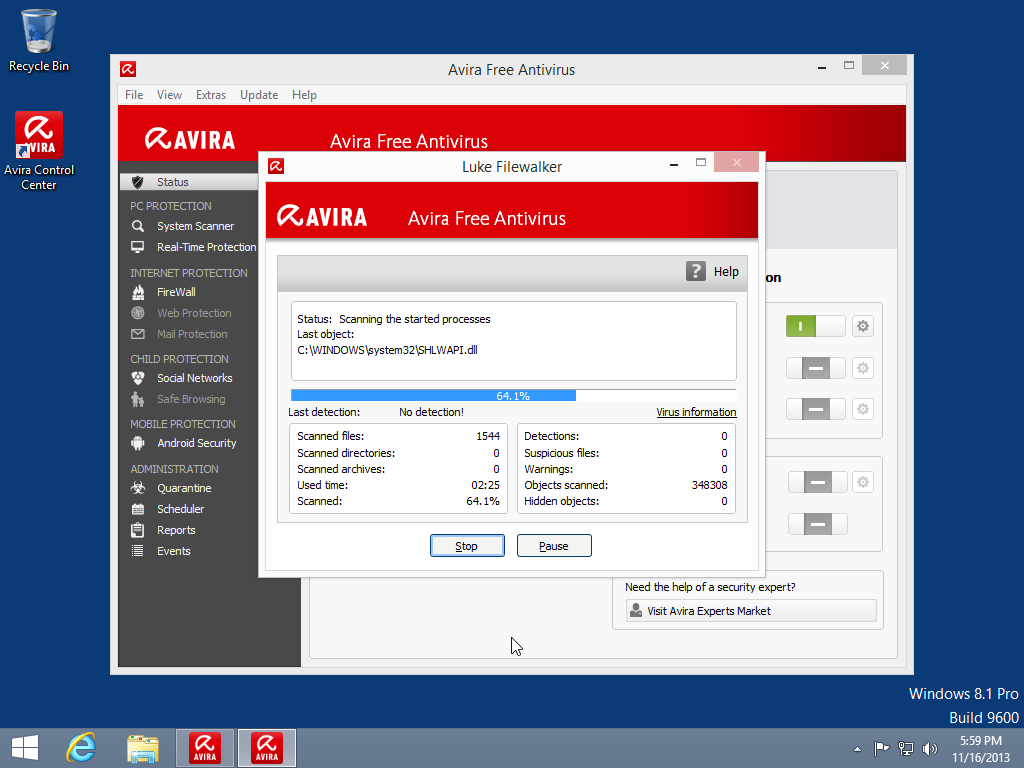
Secondly, Avira Free Antivirus will scan the started processes in your Windows 8.1 OS.


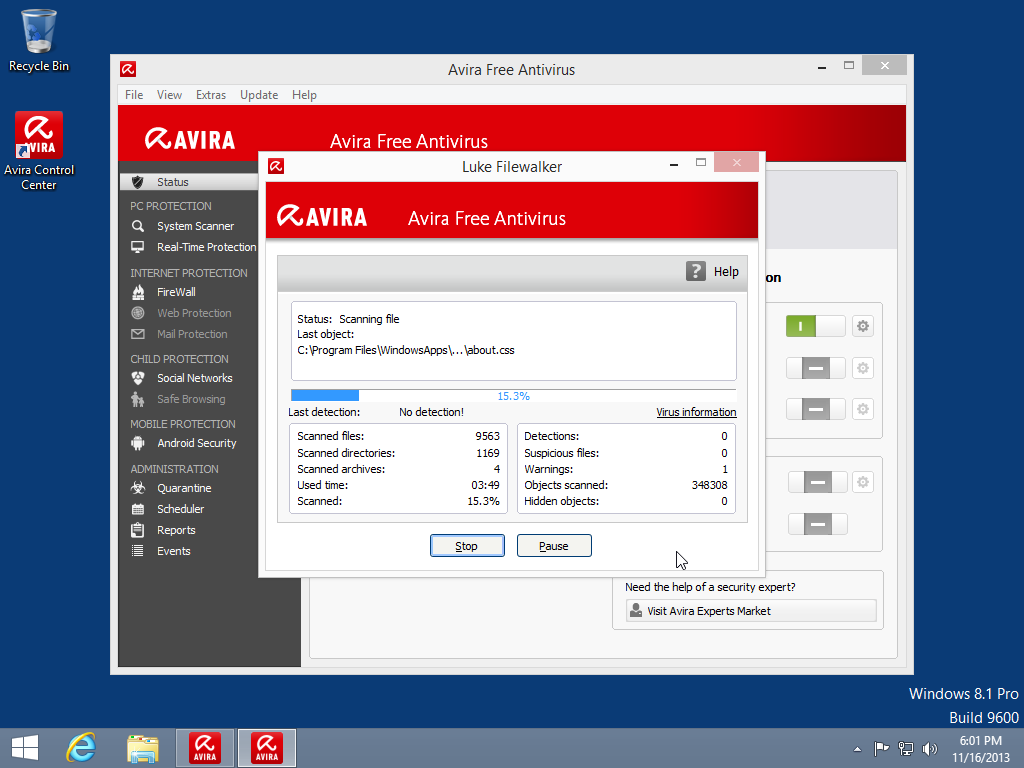
And finally, files scanning will be done.
 

After “Scan system” operation finish. “Last scan” date will be shown.


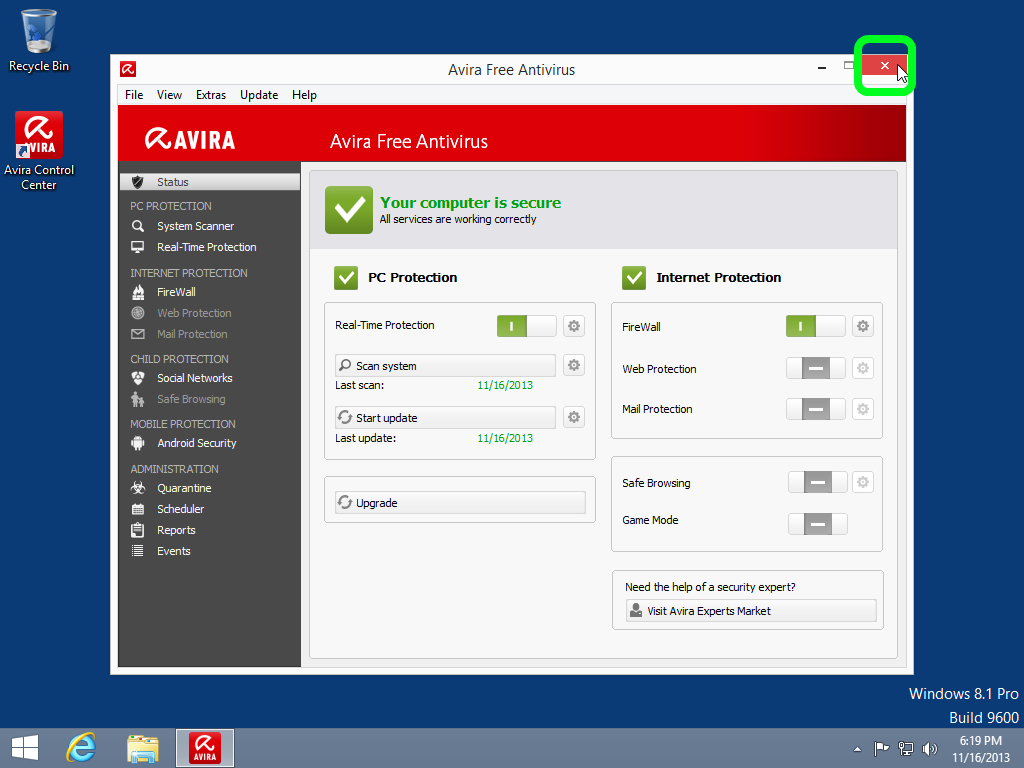
Avira Control Center could be closed.